AI-assisted smart labels
Ask AI to group and label related parts of a long document, making its structure and important details easier to understand at a glance.
A beautiful preview for everyday reading. AI can also add smart labels that group related sections, making long documents easier to understand.
Version 0.2.2 · about 1 MB · works with VS Code 1.85+
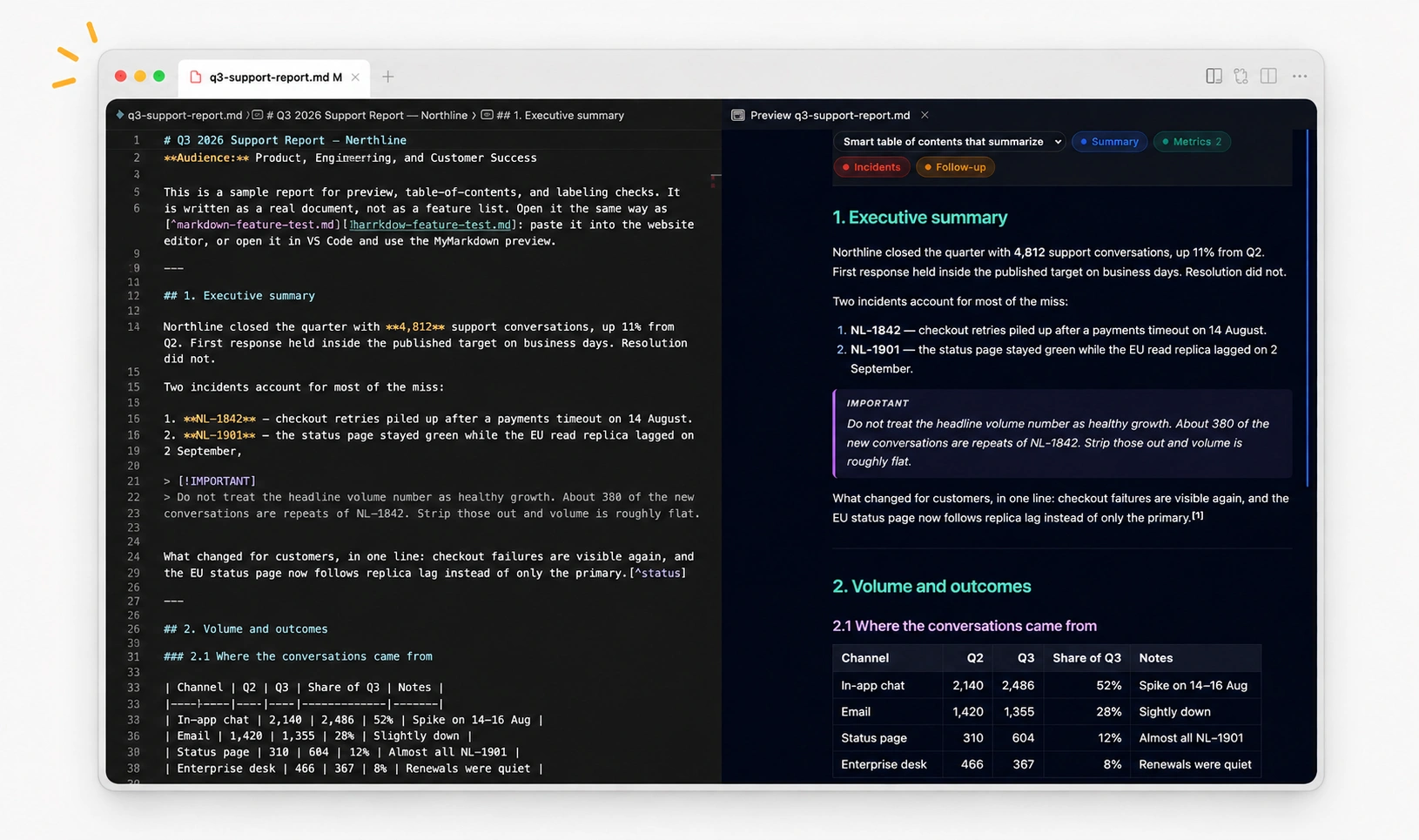
Ask AI to group and label related parts of a long document, making its structure and important details easier to understand at a glance.
Colorful headings, formatted JSON, task lists, Mermaid diagrams, calm code blocks, scroll sync, and click-to-source — all inside VS Code’s own preview.
Press Cmd/Ctrl + Alt + B to normalize spacing, lists, and JSON with the smallest possible edit. One undo reverses the whole change.
Jump through H1–H3 headings from the sidebar. Heading jumps, unclosed fences, mixed bullets, and invalid JSON appear in Problems as you type.
A lens turns one useful question into a visual map of the document. Labels are saved beside your workspace, so you can return to them or keep several views of the same file.
Example: ask “Which parts need more work?” and the preview can mark sections as Complete, Needs decision, or Missing detail.
Which parts need more work?
Nothing is generated just by opening a file. You stay in control.
Keep the .md editor focused — label commands are hidden while the Preview tab has focus.
Open the Command Palette and run “MyMarkdown: Suggest Label Lenses”.
Choose one of the three suggestions, or run “MyMarkdown: Label Document…” to ask your own.
The preview shows colored chips and bars. Click a chip to jump through its matches; use the first chip to switch lenses.
MyMarkdown stores no AI key. Choose a model available through VS Code, or connect a trusted command-line AI. AI runs only when you request a lens.
The default auto mode uses an authorized provider such as GitHub Copilot when VS Code exposes one.
For Cursor or a local workflow, set the provider to cli and use a command such as claude -p.
Open Preferences: Open User Settings (JSON), then add:
"mymarkdown.labels.provider": "cli",
"mymarkdown.labels.cliCommand": "claude -p --output-format text --max-turns 1"
Reload the window, focus the Markdown source tab, and run MyMarkdown: Suggest Label Lenses.
Privacy note: previews, beautify, contents, and lint stay local. When you request AI labels, the document is sent to the provider you selected.
Grab the .vsix file above and save it anywhere on your computer.
Open VS Code, press Cmd/Ctrl + Shift + P, run “Extensions: Install from VSIX…”, and pick the file you just downloaded.
Run “Developer: Reload Window” from the same menu, or just restart VS Code.
Press Cmd/Ctrl + Shift + V for the styled preview. Use the MyMarkdown sidebar for Contents, or Cmd/Ctrl + Alt + B to beautify.
Prefer the terminal?
code --install-extension mymarkdown-0.2.2.vsixRun it from the folder where you saved the file.